

[EAP] Integrate with Bob Payroll Hub for Partners
[Early-access program] How to develop an integration with Bob Payroll Hub for Partners and sync your data
Early-access program disclaimer: This article describes an early-access program phase. The API surface, behavior, and implementation details may change.
Overview
The Payroll Hub for Partners Public API enables payroll providers to seamlessly integrate with HiBob's ecosystem and automate payroll data synchronization.
The Payroll Hub API provides programmatic access to payroll-specific reports so you can:
- Receive webhook notifications when data syncs are triggered
- Retrieve the sync report with employee changes and updates
- Update sync status to provide feedback to customers
Common use cases include:
- Automating employee onboarding into your payroll system
- Keeping employee records up to date with the latest changes
- Reducing manual data entry and minimizing errors
- Maintaining compliance through accurate record keeping
Payroll Hub Integration Architecture
The Payroll Hub uses a Push-to-Pull Hybrid model designed for optimal partner experience:
- Event notification via webhook: HiBob sends you a webhook when data is ready (triggered by customer sync action)
- Controlled data retrieval: Your system calls the Payroll Hub API to fetch the required sync request data.
- Process data on your terms: Validate and process the data within your systems.
- Return status: Send success/error responses per record to provide feedback to customers before the sync request expires.
Sync request expiration window
By default, you have 2 minutes to update the status of at least one sync record. Each successful status update extends the expiration window by another 2 minutes, allowing you to continue processing additional records until all records are updated
sequenceDiagram
    User->>Bob: Triggers sync request
    Bob-->>Payroll System: Webhook: Sync Request event (syncRequestId, expiringAt)
    Payroll System->>Bob: GET /sync-requests/{syncRequestId}/sync-records
    Payroll System->>Payroll System: Process the Sync Request records
		Payroll System->>Bob: PUT /sync-requests/{syncRequestId}/sync-records
    Bob->>User: Review sync status
Setup and Testing Flow
Early-access program phase:
- In this phase, report field selection is configured manually in Bob via Platform Connect. To discover partner-facing field types and list values for your vendor fields, call Get integrations metadata. To understand how mapped Bob field types appear in payloads, see Vendor field names and data types.
- After the report is defined, you can link it to a pay cycle for testing purposes. In the full product (after the early-access program), report definition and field selection will be managed via an API.
- Step 1: Create your app in the Developer Portal and get the installation link for testing
- Step 2: Configure the report in Payroll Connect
- Step 3: Add and activate a pay cycle
- Step 4: Install your app (developer mode)
- Step 5: Discover field types and list values
- Step 6: Send sync requests and test your integration
- Step 7: Submit your app for review to be published in the marketplace
Step 1: Create your app to obtain installation
- Log in to the developer portal.
- Follow the Quick start guide to set up your app, and select the required scopes and webhooks.
- You will need the installation link for testing.
- Implement your server side OAuth flow and Webhook listener.
Step 2: Configure the report in Bob’s Payroll Connect
-
Add a configuration in Payroll connect
- In Bob, from the top left, click Bob products > Marketplace.
- From the left menu, select Payroll.
- Click the Payroll connect tile.
- Click Connect.
- Click + Add configuration at the bottom of the screen.
- Select Start from scratch to set up a connection.
- This opens the Configure payroll reports wizard, used to set up a custom payroll connection.
-
Connection Details
- In the Vendor name field, enter your company Name.
- In Transfer method, select File download.
- Leave all other selections as-is.
- Click Next to proceed to Fields, where you define the fields required by your payroll system.
-
In Fields, add the fields you want to receive from Bob via the API:
-
For each field:
- In the Vendor field column, enter the Field Name as you want it to appear in the sync request data.
- Check the boxes next to the Bob reports you want to include the field in: Changes, New Hires, Terminations, and Time Off.
- Click +Add field to add more fields.
-
To add a Deduction, Variable pay, Actual Payment or Entitlement field, click the arrow next to +Add field and select the required option.
-
Select a field (any field will do) as the Identifier field.
-
Click Next.
Note: Currently New Hires, Changes, Terminations, and Time Off reports are supported for the partner sync API.
-
-
In Value Mapping click Next to skip this step.
-
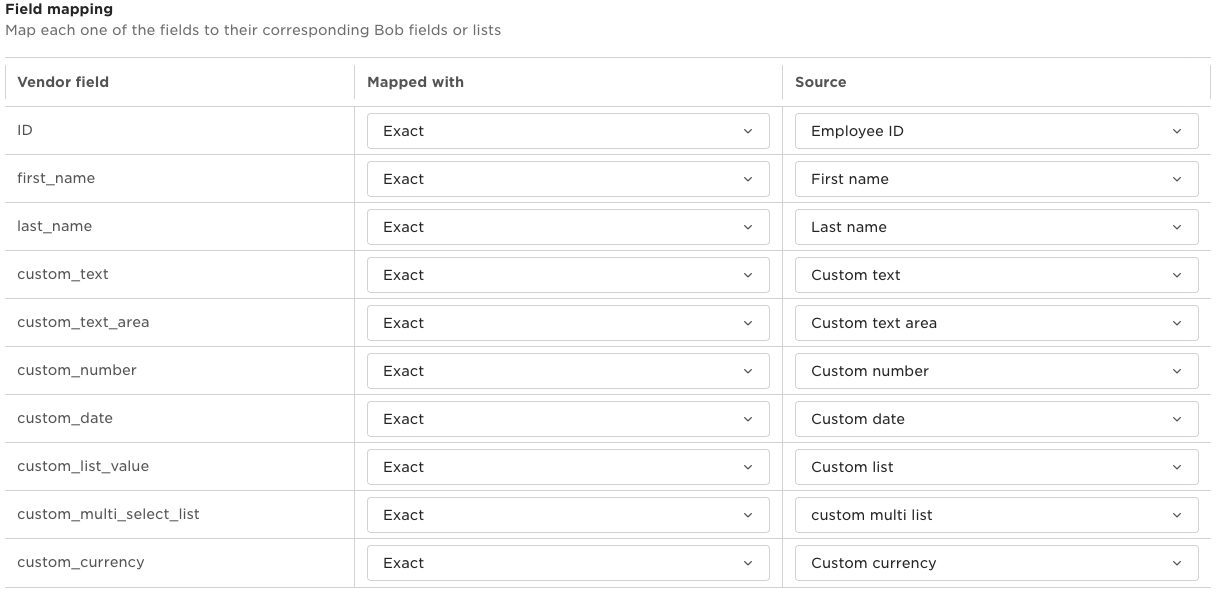
In Field Mapping, add mapping to the actual fields in Bob. This determines which Bob fields’ values will appear in the API response
dataobject. For each field:-
In Mapped with, always choose Exact.
-
In Source, select the field in HiBob you want to map to each field.
-
Click Next when done mapping all the fields.
Note: If you want to map a Bob custom field, make sure it is included as a prerequisite for clients as part of the user guide.
-
-
In Report settings, click Done to skip this step and finalize the configuration.
To learn about Payroll connect, and watch a video on how to set it up, see Set up payroll reports via Payroll Connect .
Step 3: From Bob: Add and activate a pay cycle in Payroll Hub
- From Bob products > Payroll > Settings, click Add pay cycle.
- In Vendor, select the Payroll Connect configuration you have defined in step #1.
- Click Continue.
- Enter a Pay cycle name and click Next.
- From People and frequency enter the required fields. To learn more, see the relevant People and frequency in the help center.
- From Reports, select which reports will be sent to the payroll system with this pay cycle, and if the data will be synced automatically.
- To ensure a report is included in the pay cycle, select Enable [report name] for this pay cycle. To learn more, see Reports settings in the help center.
- Click Next, skip the Report fields step, and then click Save.
- From the top right, click Activate to activate the pay cycle.
Notes:
- Without an active pay cycle, there may be no report data generated to sync.
- To learn more on activating pay cycles, see Set up and manage a pay cycle.
Step 4: Install your app in developer mode
-
When testing, you can use the installation link to create an OAuth token via Postman with developer credentials. To learn mode, see Step 3: Request authorization in the OAuth guide.
-
When you have a token from Postman, you can use it to try the endpoints from the documentation
Action Endpoint Get sync report records [BETA] Get sync report data Update sync status [BETA] Update sync request records Get integrations metadata [BETA] Get integrations metadata -
Make sure your Webhook listener is up and running and that you are using the Developer Credentials in your OAuth flow.
Step 5: Discover field types and list values
After you configure vendor fields in Payroll Connect and install your app, call [BETA] Get integrations metadata to fetch the partner-facing field catalog for your integrations. Your OAuth app needs the company.metadata:read scope.
Use this response during setup to:
- Learn each field’s
vendorFieldName(these match the keys in sync recorddata) - Learn each field’s partner-facing
type - For
list,multi-list, andhierarchy-listfields, retrieve allowedvalueswhen a list catalog is available
Rate limit: 5 requests per minute per auth.
Step 6: Send sync requests to test your integration
- To test each sync request type, you should first make sure you have relevant updates included in the report:
- For changes, make changes to the fields you selected to send in sync requests.
- For New Hires, add new employees.
- For terminations, terminate employees.
- From Payroll > Payroll cycles, open your Payroll Connect.
- Choose the relevant report and select the lines you want to export.
- Click Export all records, then click Export.
- A webhook event will be sent to your webhook listener URL provided for your app in the developer portal.
- Receive a webhook with a
syncRequestId. - Use the
syncRequestIdto pull the sync data.- Results are paginated. Use
limitandcursorto retrieve all records.
- Results are paginated. Use
- Process records and report per-record status
- Use Update sync request records to report status (synced/failed).
- Each record includes an
identifierobject (used to match the record when reporting status) and adataobject.**Tip:** Treat vendor field names in the `data` object as stable identifiers. Use [Get integrations metadata](https://apidocs.hibob.com/reference/get_payroll-hub-integrations-metadata) to discover types and list values for those keys.
Step 7: Submit your app for review to be published in the marketplace
- Once your app is ready, submit it for approval.
- Once approved, your app will appear in the Bob Marketplace.
Payroll Hub Public API
A sync request represents a specific instance of data synchronization. Each sync request has a unique syncRequestId that you use to retrieve the associated report data and update sync status. Each sync request is short-lived, and must be retrieved in the expiration window for the sync request.
Sync request types
| Sync type | What it contains | Action | Record identifier |
|---|---|---|---|
| New Hires | Employees who have recently joined the organization | Create new employee records in your payroll system | employeeId |
| Changes | Employee data modifications since the last sync | Update existing employee records in your payroll system | employeeId + effectiveDate |
| Terminations | Employees whose employment ended since the last sync | Mark employee as terminated in your payroll system | employeeId |
| Time Off | Time off requests relevant to the pay cycle | Create or update time-off entries in your payroll system | employeeId + effectiveDate + timeOffRequestId |
Webhooks
Webhooks provide real-time notifications when data syncs are triggered from HiBob to your payroll system.
Webhook types and triggers
Subscribe to these webhook types to receive notifications:
| Webhook type | Identifier | When triggered | Included data example |
|---|---|---|---|
| Report sync – New hires | payrollhub.datasync.newhires | Triggered when a customer initiates a New Hires sync (either manually by clicking the "Sync" button or automatically via a scheduled sync). This webhook notifies you that new employee data is ready for retrieval. | Personal details, Employment information (start date, position, department) |
| Report sync – Changes | payrollhub.datasync.changes | Triggered when a customer initiates a Changes sync. This webhook notifies you that updated employee data is ready for retrieval. | Personal information updates Employment status changes (promotions, transfers, terminations), Compensation adjustments (salary changes, bonus information), Work schedule modifications, Tax and benefits changes |
| Report sync – Terminations | payrollhub.datasync.terminations | Triggered when a customer initiates a Terminations sync. This webhook notifies you that termination data is ready for retrieval. | Employment termination details (termination date, reason) |
| Report sync – Time off | payrollhub.datasync.timeoff | Triggered when a customer initiates a Time Off sync. This webhook notifies you that time-off request data is ready for retrieval. | Time off request fields (nested under data.timeOff), plus any mapped employee vendor fields |
Webhook payload structure
All sync webhooks send the same payload structure:
{
  "companyId": 637323,
  "type": "payrollhub.datasync.changes",
  "triggeredBy": "3418533772247696340",
  "triggeredAt": "2024-10-03T09:29:00.831502Z",
  "expiringAt": "2024-10-04T09:29:00.831502Z",
  "version": "v2",
  "data": {
    "syncRequestId": 123456789
  }
}
Payload fields
| Field | Description |
|---|---|
companyId | The unique identifier for the customer's company |
type | The webhook type identifier (for example, payrollhub.datasync.newhires or payrollhub.datasync.changes) |
triggeredBy | The user ID who triggered the sync (for manual triggers) or system identifier (for scheduled syncs) |
triggeredAt | Timestamp when the sync was triggered |
version | API version |
expiringAt | Timestamp indicating when the sync request will expire (2 min. by default). Make sure you send at least the first sync update before this request expires. |
data.syncRequestId | The unique identifier for this sync request. Use this value to retrieve report data via the API and to update the sync status. |
Endpoints
Use these endpoints to retrieve report data and update sync status.
| Action | Endpoint | Description |
|---|---|---|
| Get sync report records | [BETA] Get sync report data | Retrieve sync request records for a specific sync request. Supports pagination with limit and cursor parameters. |
| Update sync status | [BETA] Update sync request records | Update the processing status for individual records (synced or failed). |
Response data structure
Response body:
| Field | Type | Required | Description |
|---|---|---|---|
items | array | Yes | List of sync data records |
responseMetadata | object or null | No | Pagination/metadata |
responseMetadata.nextCursor | string | No | Cursor for the next page of results |
Sync records:
| Field | Type | Description | Notes |
|---|---|---|---|
objectType | string | Array item type | Will always be “syncRecord” |
identifier | object | Record identifier (see below) | |
identifier.employeeId | string | Employee ID | For all types |
identifier.effectiveDate | string | Date in YYYY-MM-DD | For Changes and Time Off |
identifier.timeOffRequestId | number | Time off request ID | For Time Off — required for status matching on PUT |
data | object | Employee data keyed by vendor field name → value | |
data.<vendorFieldName> | varies | Value from the Bob field the customer mapped in Payroll Connect for that vendor field | Type follows the mapped Bob field |
data.timeOff | object | Nested time-off request fields (for example timeOffRequestId, timeTaken) | For Time Off syncs; present in addition to mapped vendor fields |
Time off nested data.timeOff
data.timeOffFor Time Off sync records, the response may include a nested timeOff object under data. It carries time-off request fields from the report (keys such as timeOffRequestId and timeTaken).
Always use identifier.timeOffRequestId (not only data.timeOff.timeOffRequestId) when calling Update sync request records, so Bob can match the same row.
Example — Time off sync
{
  "objectType": "syncRecord",
  "identifier": {
    "employeeId": "3308236326381289484",
    "effectiveDate": "2026-08-17",
    "timeOffRequestId": 987654321
  },
  "data": {
    "firstName": "John",
    "lastName": "Doe",
    "timeOff": {
      "timeOffRequestId": 987654321,
      "unit": "days",
      "endDate": "2026-08-18",
      "startDate": "2026-08-17",
      "timeTaken": 2.0,
      "approvedBy": "3840950714129974020",
      "requestedOn": "2026-08-16T09:21:39.381109"
    }
  }
}
Vendor field names and data types
Fields are configured and mapped in Payroll Connect. The data object keys are the vendor field names you set in the integration template (Vendor field column).
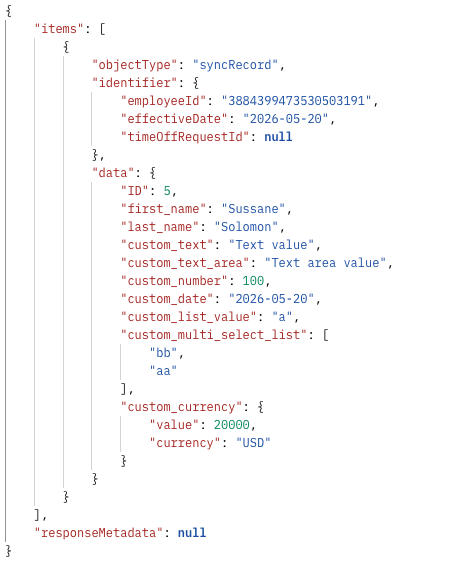
Each mapped field appears in the response data object as a vendorFieldName: value pair.
Regular (custom) vendor fields
For standard fields added with +Add field, the Vendor field name you enter in Payroll Connect is the key used in the sync payload data object. You can choose any label that helps your integration.
Pre-mapped table fields (Deduction, Variable pay, Entitlement, Actual payment)
Some fields are pre-mapped table columns, not regular Bob profile fields. Add them from Fields in Payroll Connect by clicking the arrow next to +Add field and selecting Add Variable pay fields, Add Deduction fields, Add Entitlement fields, or Add Actual payments fields (see Step 2 above).
Payroll Connect may let you rename sub-column labels in the UI (for example Payment period under Variable). Those labels do not change the keys in the API response. Sync records always use Bob’s predefined field IDs in the format described below.
Field ID format (Entitlement, Deduction, Variable pay)
For these pay-component tables, each column is sent as a separate key:
{Table name} - {Pay component type name} - {Column name}- Table name —
Entitlement,Deduction, orVariable(based on the table you added). - Pay component type name — the configured type in Bob (for example
company car,commission,lunch vouchers). This is not customizable in the payload. - Column name — the table column (for example
end date,amount,payment period). This is not customizable in the payload.
Entitlement
| Column | Field ID example | Value format |
|---|---|---|
| End date | Entitlement - company car - end date | Date string (YYYY-MM-DD), e.g. "2026-06-12" |
| Amount | Entitlement - company car - amount | Currency object, e.g. {"value": 1000, "currency": "USD"} |
Deduction
| Column | Field ID example | Value format |
|---|---|---|
| End date | Deduction - company car - end date | Date string (YYYY-MM-DD) |
| Amount | Deduction - company car - amount | Currency object |
Variable pay
| Column | Field ID example | Value format |
|---|---|---|
| Amount | Variable - commission - amount | Currency object |
| Payment period | Variable - commission - payment period | String (list value), e.g. "Monthly", "Annual", "Quarterly", "Half-Yearly" |
| End date | Variable - commission - end date | Date string (YYYY-MM-DD) |
| Company percent | Variable - commission - company percent | Number |
| Department percent | Variable - commission - department percent | Number |
| Individual percent | Variable - commission - individual percent | Number |
Example — Changes sync with pre-mapped fields
{
  "objectType": "syncRecord",
  "identifier": {
    "employeeId": "3845474844414050433",
    "effectiveDate": "2026-06-11"
  },
  "data": {
    "Entitlement - company car - end date": "2026-06-12",
    "Entitlement - company car - amount": {
      "value": 1000,
      "currency": "USD"
    },
    "Entitlement - lunch vouchers - end date": "2027-03-04",
    "Entitlement - lunch vouchers - amount": {
      "value": 150,
      "currency": "GBP"
    },
    "Deduction - company car - end date": "2026-04-22",
    "Deduction - company car - amount": {
      "value": 1000,
      "currency": "USD"
    },
    "Variable - commission - amount": {
      "value": 5000,
      "currency": "USD"
    },
    "Variable - commission - payment period": "Monthly",
    "Variable - commission - company percent": 10,
    "Variable - commission - department percent": 20,
    "Variable - commission - individual percent": 70
  }
}
Only pay component types and columns included in your Payroll Connect report appear in the payload. If an employee has no value for a type, its keys may be omitted.
Actual payment fields
Actual payment works differently from Entitlement, Deduction, and Variable pay:
- Actual payment fields appear at the same level as other employee fields (for example
job_title). - For each actual payment row, Bob returns two top-level keys:
Actual payment - amountActual payment - pay type
- Each key holds an object keyed by the actual payment row ID (not by pay type name).
Note:
The Actual Payment structure is temporary and will be replaved with a better-structured experience in the future.
Example
{
  "data": {
    "job_title": "Designer",
    "Actual payment - amount": {
      "372": {
        "value": 1000,
        "currency": "USD"
      }
    },
    "Actual payment - pay type": {
      "372": "Bonus"
    }
  }
}
How to read this structure
| Key / path | Meaning |
|---|---|
job_title | Regular vendor field — string value at the top level, alongside actual payment fields. |
Actual payment - amount | Top-level key; value is an object keyed by actual payment row ID. |
Actual payment - amount.372 | Row ID 372 — currency amount for that actual payment record. |
Actual payment - amount.372.value / .currency | Amount and currency for the row. |
Actual payment - pay type | Top-level key; value is an object keyed by the same row IDs. |
Actual payment - pay type.372 | Pay type list display name for row 372 (for example "Bonus"). |
If an employee has multiple actual payment rows, expect multiple entries inside each object (one entry per row ID):
"Actual payment - amount": {
  "372": { "value": 1000, "currency": "USD" },
  "401": { "value": 250, "currency": "USD" }
},
"Actual payment - pay type": {
  "372": "Bonus",
  "401": "Commission"
}
Data types: The JSON value type for each key depends on which Bob field the customer maps. Instruct your customers to map each vendor field to a Bob source field of the type your integration requires. Payroll Connect does not enforce type matching yet. To discover partner-facing types and allowed list values for your vendor field names, call Get integrations metadata.
Tile configuration: Use the Get all employee fields metadata endpoint when choosing source Bob fields in the integration template—not to discover types from sync record keys.
To see how a mapped Bob field type is represented in API payloads, refer to Field Types.
Example (data keys are vendor field names from your Payroll Connect template, such as fullName and department):
Required permissions and scopes
To use the Payroll Hub Partners API, your OAuth app requires the scopes defined in the reference guide.
Best practices
When implementing the Payroll Hub Partners API integration:
- Persist webhooks before handling them to ensure a robust and resilient solution
- Create jobs to handle webhooks rather than processing them synchronously
- Use appropriate error handling and retries for production implementations
- Cache authentication tokens according to OAuth best practices
- Respect rate limits of 5 concurrent requests
- Audit API requests and responses (HiBob does not audit this data)
- For webhook guidelines, see HiBob's webhooks guide for partners.
Updated about 1 hour ago